Menus
Caveats
Most if not all pages are just rough notes, and these pages as a whole are far from complete. More notes will be added in time, eventually, maybe.
If, from reading these notes, you conclude that I am off my rocker, you won’t be the first, and you may even be right. These pages may simply position me as an acolyte to the late Gene Ray.
No doubt there are a dozen and one reasons why none of this would ever work, but perhaps somewhere deep down there is a tiny fragment that could be used for something.
Contents
- Overview
- Approaches
- Universal menu structure
- Moving forwards
- Implementation details
- Hover panels
- Search
Overview
Menus and related interface concepts (toolbars, ribbons etc) provide a repertoire of commands available to the user. A large variety of approaches have been taken over the decades.
Approaches
There are various ways to implement menus. From the outset, Microsoft opted for in-window menu bars with Windows:
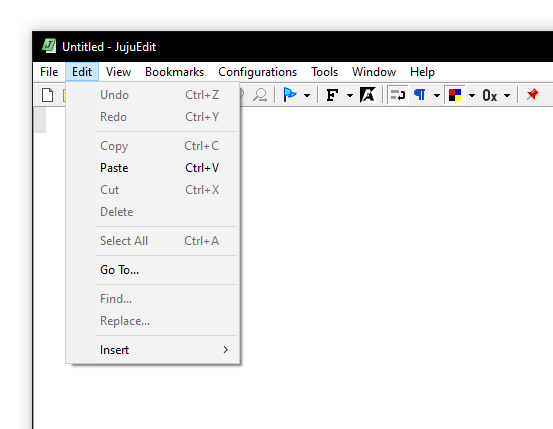
Mac OS opted for a single, central menu bar. This has certain advantages, including:
- Menus within the menu bar are easier to reach with the mouse by way of Fitts’ Law, as the menu bar is infinitely tall and it is impossible to overshoot it with the mouse cursor.
- Menus are available within dialog boxes, meaning that Edit → Copy and Edit → Paste are able to remain accessible at all times.
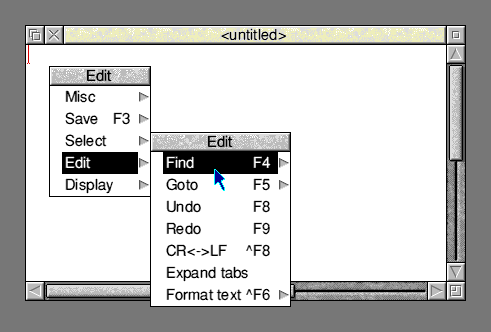
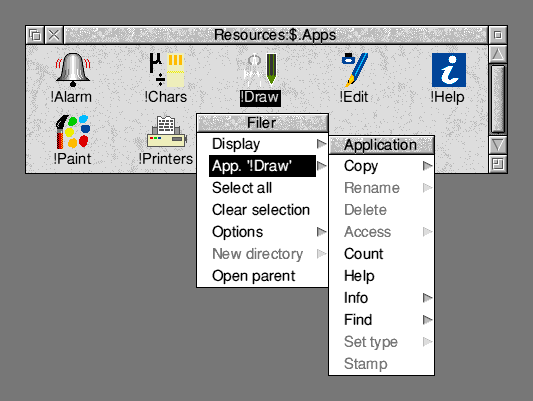
RISC OS unified the application menus and context menus into a single menu system invoked with the middle (“Menu”) mouse button:
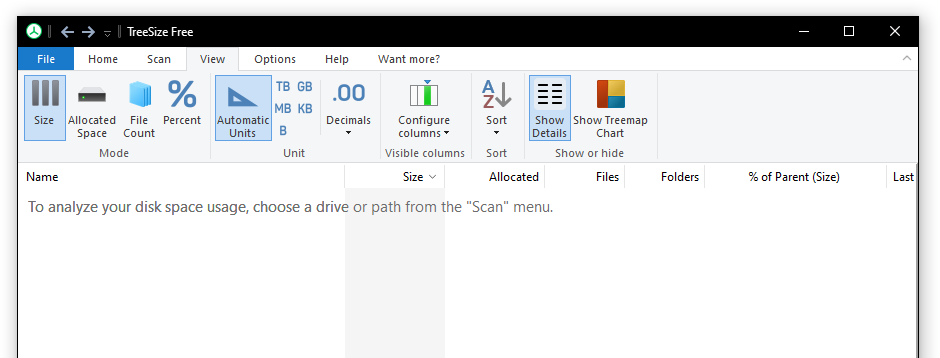
Microsoft Office 2007 introduced a new menu system referred to a the “ribbon”, where the menus and toolbars were merged into a single interface. This implementation was kept proprietary and private, necessitating third party vendors to re-implement it from scratch. Most third-party implementations were unsightly, some even hideous, as a result. A simplified version was implemented in Windows 7 and used by a tiny subset of built-in tools.
More commonly, menus are now buried in a button with a randomly-chosen symbol, somewhere in the window (could be on the left, could be on the right) if indeed the program even implements menus at all.
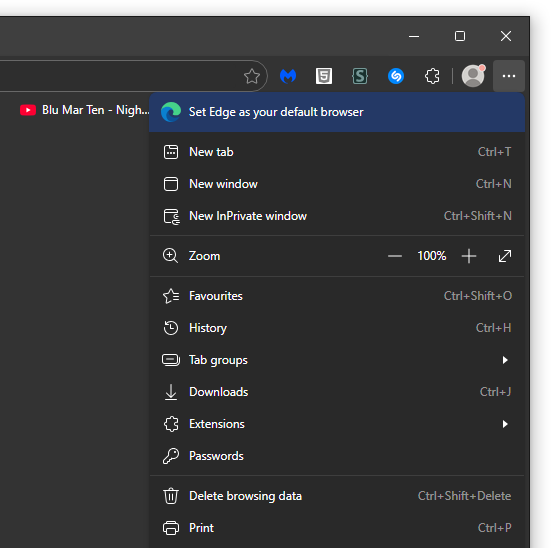
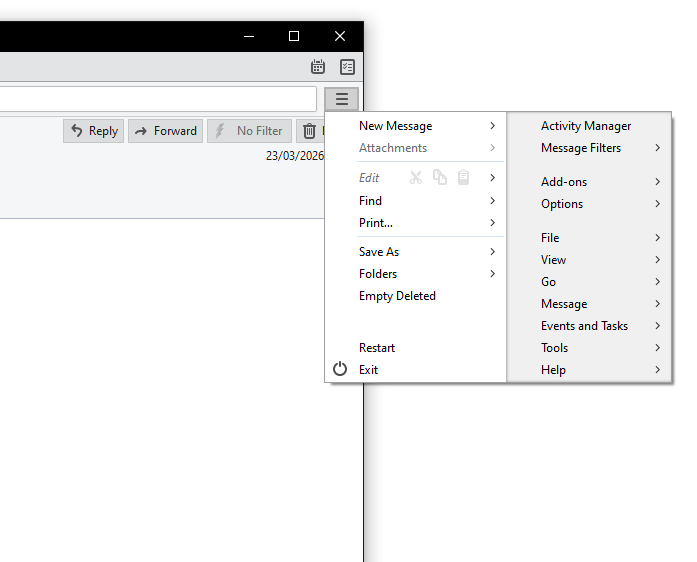
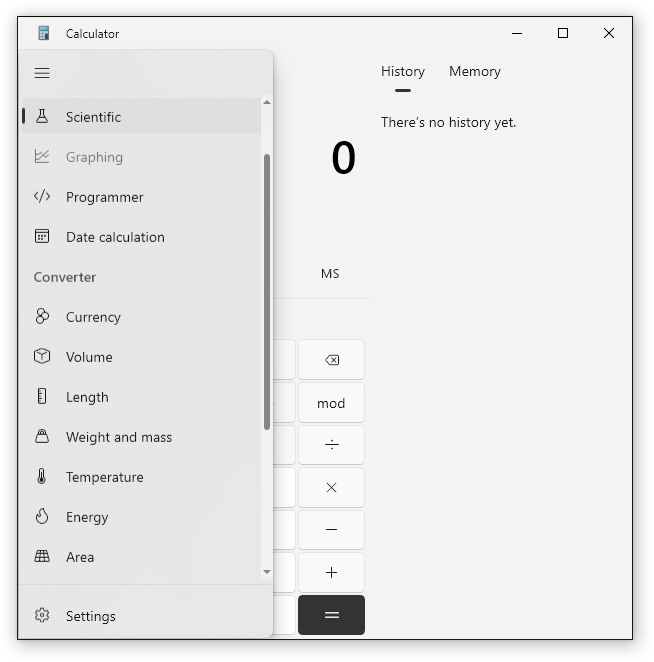
Some programs combine the menu bar and toolbar (e.g. Windows 11 Notepad) or allow the user do this if they please (e.g. Tracker PDFXchange Editor). This works well so long as the menu bar and toolbar are both limited in their number of items.
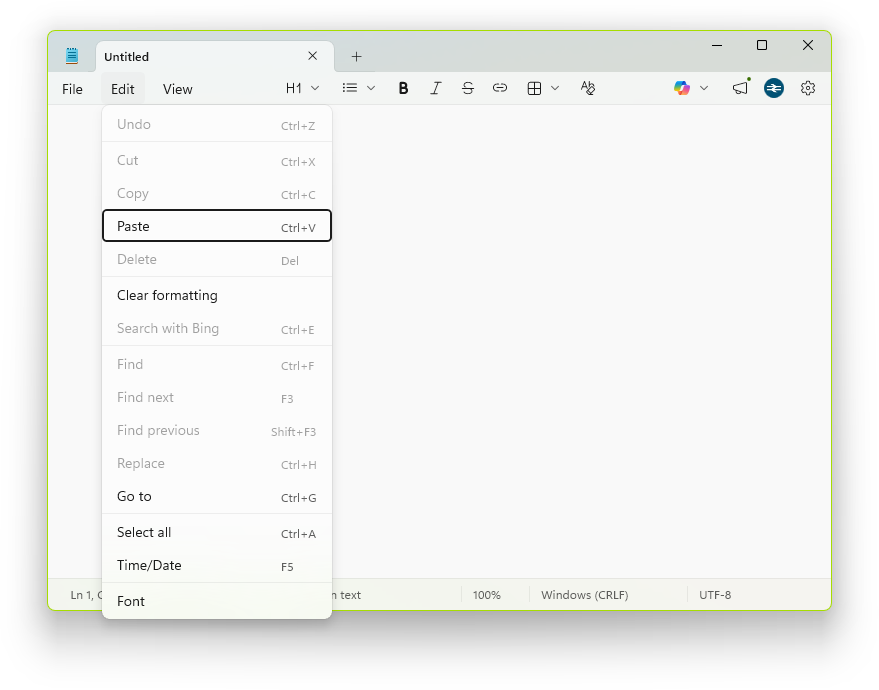
One major concern is that most of these approaches make the Edit menu unavailable to dialog boxes. The Macintosh is so far the only mainstream system to allow the user to access the Edit menu with a dialog box open.
Universal menu structure
Ideally it should be possible to adopt a menu implementation that can be used in any of the Windows, macOS or RISC OS approaches according to the user’s preference (based on the user’s choice of window manager). Ideally, the whole menu structure would be defined collectively and passed to the window manager.
To achieve this, three types of menus need to be defined within an application:
- The application menu: this represents the application itself, a concept introduced with macOS. The application menu contains the Preferences, About and Quit menu items, placing these into a meaningful and consistent location. This menu resolves the inconsistent locations and nomenclature (e.g. Edit → Preferences, Edit → Settings, Tools → Options). Additional application–specific menu items can be placed here.
- The primary menu set: this is a set of menus that are specific to (depending on policy or preference) the application as a whole or to the focused window.
- A collection of contextual menus.
Each menu or menu set is passed as a whole into the window manager. IDs associated with menu items allow for dynamic changes to be made. The magnifying glass searches the menu structure.
This structure can be dynamically adapted to the UI model in use, as detailed below.
PC style
The PC-style menu behaviour places (1) and (2) into the menu bar of each window, and uses (3) for context menus. The behaviour is largely the same as Windows except for the addition of a Mac-style application menu that collects application-specific menu items together.
RISC OS–style draggable, captioned context menus are depicted; the context menu caption is required for RISC OS mode to provide the submenu caption, and is shown on the menu itself to indicate the role played by the menu.
Mac style
The Mac-style menu behaviour is identical to the PC-style menu behaviour except that (1) and (2) are placed into the global menu bar at the top of the screen:
Mac practice has been to have a single set of menus used across a whole application, enabled and disabled according to context, rather than a separate menu bar for each type of window. The approach described here will not attempt to achieve this.
RISC OS style
RISC OS–style moves all of (1), (2) and (3) into the same floating menu. (1) and (3) become submenus; having (3) as a submenu follows RISC OS practice, while the placement of (1) into the top-level menu is per systemwide convention.
Moving forwards
There is no guarantee that a hierarchical menu system is the correct choice at all. It’s unlikely that much in the way of alternatives—such as ribbons—could be automatically built from a pre-defined menu structure. That is to say, if ribbons were made the standard UI or some other radical new approach were to be chosen, there would be no way to have traditional menus as an alternative UI for those people who prefer it.
Toolbars
One advantage of pre-defined menus is that, so long as icons are assigned to the commands (whether or not icons are shown againt menu items), the user can be offered the ability to add any command to a toolbar. This was a feature of Microsoft Office for a long time, but it was never extended out to the rest of Microsoft Windows as a desktop environment. The likely problem here is programs not choosing to assign every single menu command an icon, especially considering that this involves a lot of work (and a suitable source of material). There are many commands for which it is quite frankly impossible to represent them meaningfully with a small image, and menu commands whose caption is too long for a toolbar button caption. The range of menu commands available to be added to toolbars will likely be restricted to those menu items prepared for being added to the toolbar.
Implementation details
Menu choices
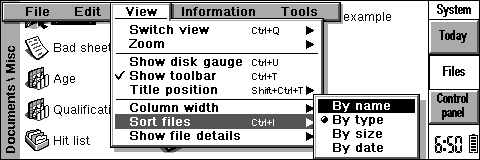
Menu items can have the same behaviour as checkboxes and radio buttons. In some interfaces (including Windows and EIKON), checkbox-type items show a tick symbol when selected and radio button–type items show a bullet symbol, enabling the user to discern at a glance whether the item has an on–off behaviour or a mutually-exclusive behaviour. The latter are typically framed by separators to indicate the scope of the option. Apple and Acorn instead chose to use a tick symbol for both situations, which is needlessly confusing.
The screenshot below from EIKON on the Psion Revo shows both types: a tick next to Show toolbar (on-off choice) and a bullet next to Sort files → By type (a mutually exclusive choice).
Windows applications seem to be more erratic as to which they choose. Windows 10 still supports the use of bullets for mutually-exclusive options but many programs get this wrong. It would appear that more programs in Windows use a tick mark for mutually exclusive choices than use a bullet mark.
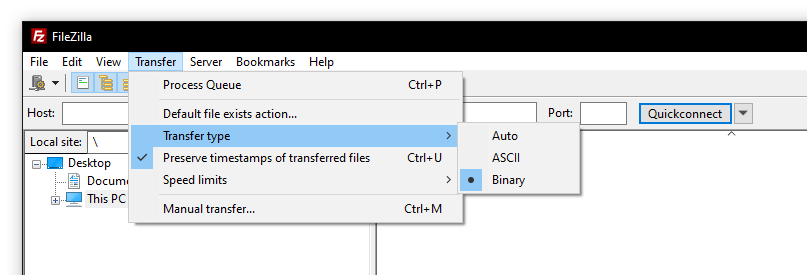
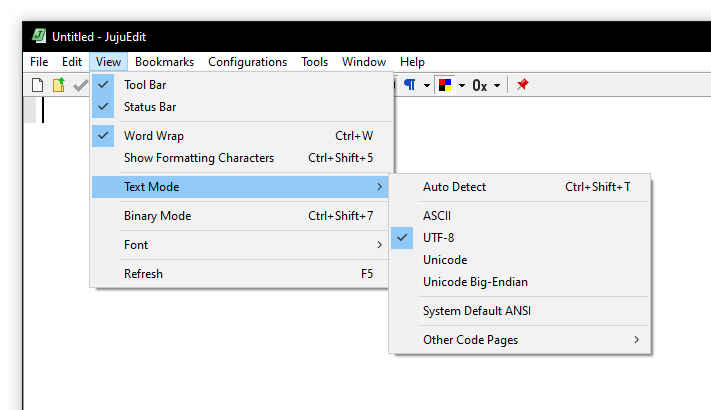
Windows requires all menu items within a radio choice group to have sequential IDs, which is not always practical when old translation DLLs are tied into specific menu IDs. The difficulty in maintaining sequential IDs may be why the idea has been largely abandoned.
Instead, the menu system should have properly-define item groups, with items collected together regardless of ID. As noted below, this will allow groups to be converted to submenus when there is a shortage of screen space. As such, groups will require a caption to be shown under this or similar circumstances; these captions will also help with accessibility and could thus be made permanently visible where required.
Overflow
Where a menu for some reason cannot fit on the screen, it should have a scroll bar or other convenient means to ensure that all items are accessible. Psion’s EIKON UI used scroll bars for menus to accommodate small screens. Pointing to an arrow at the end of the menu and waiting for more items to tediously slide into position is not a good implementation.
An alternative to avoid scrolling would be option group collapse. That is, where part of a menu represents a set of choices, if screen space is constrained, this group can be automatically converted to a submenu. The use of submenus for this purpose was used on Psion EPOC32-based palmtops.
Parent linking
RISC OS allows the parent menu item to toggle an item within its submenu, for example enabling and disabling the grid in !Draw without needing to go into the submenu to do so. In the screenshots below, the Grid submenu is shown, but this works even if the submenu is not opened. Clicking Grid and clicking Grid → Show do the same thing.
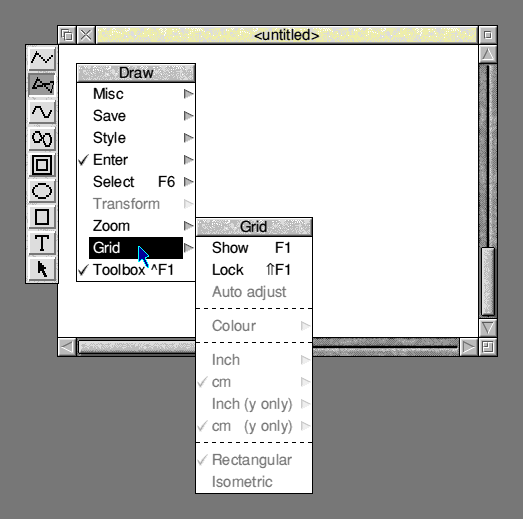
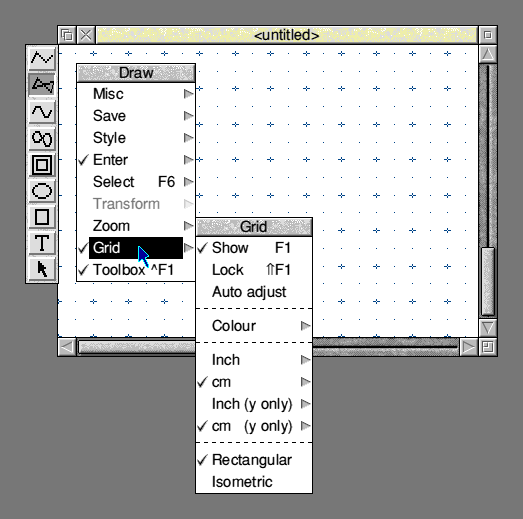
This is one of many unusual features of the RISC OS menu system.
Hold on right-click
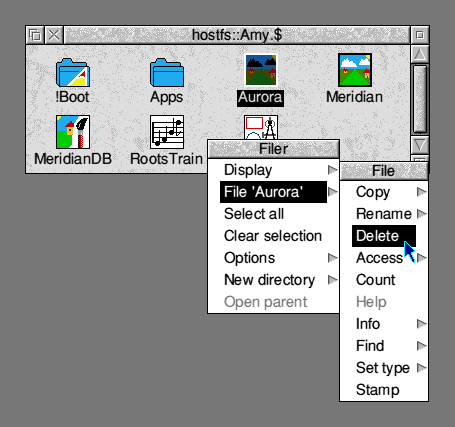
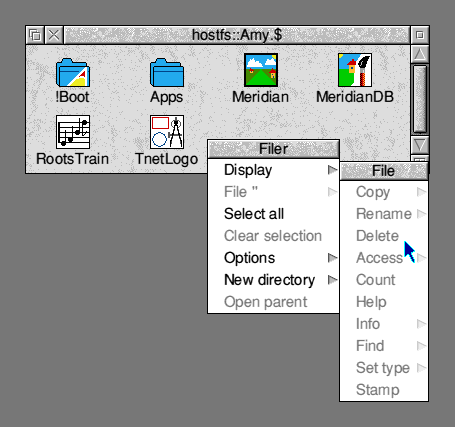
RISC OS has a curious feature: when you right-click on a menu item, the command is invoked and the menu remains open. This way, you can select multiple commands without needing to keep re-opening the menus. This behaviour cannot be directly overlaid onto any menu system, as the menu command may alter the context upon which the menu tree was formed. For example, if the command is “Delete”, what should happen to the menu afterwards? The RISC OS Filer accommodates this by disabling the menu for the file and any other related menu items:
Hover panels
“Hover panels” for a lack of a better term (Edge uses “hover menu” for its simpler design) are context menus or floating toolbars that appear adjacent to an item of content in a window. For Microsoft Word and Edge, they appear after selecting text.
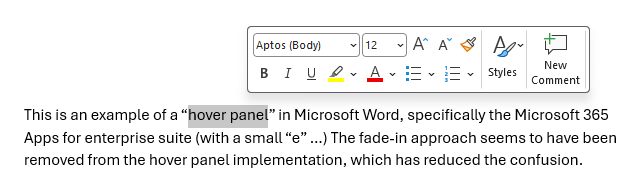
The previous implementation in Office 365 was exceptionally frustrating, as the panel’s opacity was proportional to the cursor, with the floating panel getting more opaque as the cursor neared its position and fainter as you moved the cursor away. These panels constantly got in the way and stole mouse clicks. They now appear instantaneously upon selecting text, faster than you can try to use the space underneath them.
Edge menus begin collapsed and expand when the cursor is held over the menu for a few milliseconds:
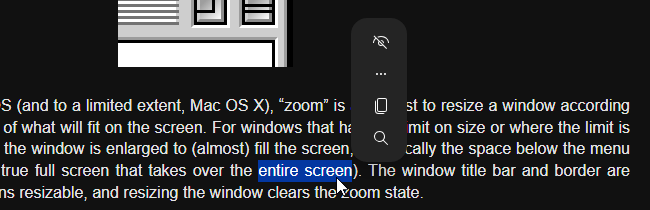
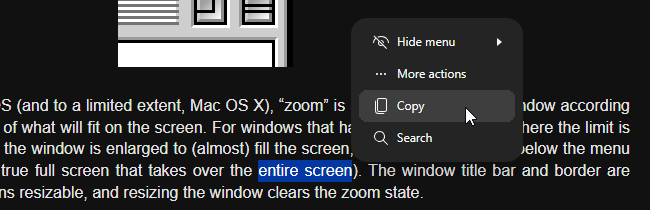
Whether this idea warrants greater merit is unclear at this stage. They are not used as a substitute for context menus, but they offer a rapidity of access that is even greater than RISC OS menu-integrated dialog boxes.
Search
The idea behind Microsoft Office’s ribbon UI seems to have been to make the menu system easier to use. This did not work.
Regardless of the approach used, there will always be a question of where a command is located within a menu system. Dividing the commands of an application into individual menus or ribbon tabs is never going to be perfect, as everyone has a different idea of where a particular command is going to be located and what it may be called. Microsoft Office introduced the ability to search for a command, but did not indicate where in the ribbon it can be found, so the user is expected to type the command again every time. Apple instead added a menu search (under the Help menu) that opens the menu containing the desired commands and points to it; in future you can return to that menu item directly or (if applicable) use its keyboard shortcut.
Some systems—such as the SentinelOne portal—use hierarchical menus very similar to that of RISC OS (but anchored instead of floating), with a search box at the top (placed in effect as the top menu item). As with Microsoft Office’s command search, you are not shown where the menu item is for future reference. Having a search at the top of the menu tree would however fit well with the RISC OS menu system.