Bug of the moment 2024-03-17
It’s no secret that I hate Microsoft Teams. Mostly this stems from the way that the original installer—as if out of pure spite—is completely incompatible with Software Restriction Policies. Simply running the installer as an administrator user is of no help as Teams could only be installed per-user.
Windows does finally have a new application installation system, that New Teams takes advantage of. Programs live in the exceptionally over-protected C:\Program Files\WindowsApps and multiple versions can co-exist side-by-side. This turns out to be similar to my dynamic map idea, with Microsoft’s liberal supply of bugs. For example, it’s not unknown for Windows to keep every single version of each of the bloatware it ships with (e.g. Candy Crush) and there is absolutely no way to remove old versions except tear a hole in the security and obliterate the directories. Windows completely loses track of what is going on and has no means to purge outdated package versions.
Now we come to two brand new Lenovo¹ PCs with Windows 11 Business 22H2. For some reason, neither one included New Teams. After updating each one to 23H2, the first one let me install New Teams (Work or School version) and the other would not:

App Installer helpfully tells me that Teams cannot be installed because the package “uses certain restricted capabilities”. It doesn’t say which capabilities, nor does it say who restricted them or why, or who is supposed to un-restrict them. Since this is a brand new PC, and a standard Microsoft package, this made no sense.
I had another attempt at downloading it in case the first package was corrupt or truncated:
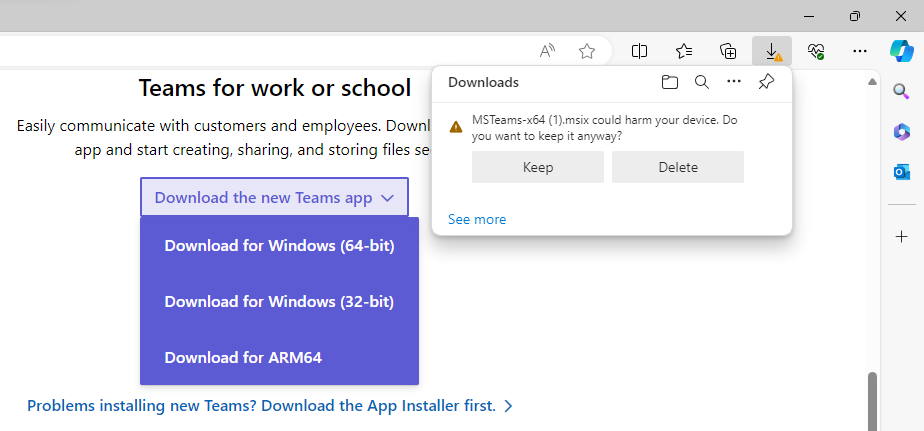
Now Edge is concerned that the package “could harm your device”. The two package files are identical.
The wisdom of the Internet is that the version App Installer on the computer is too old. For some reason, the first PC managed to update App Installer and the second did not. Remember, these PCs were identical, and both had been fully updated. It’s not unusual however for Windows to stubbornly hold back updates when setting up a new PC, typically the outstanding feature update, which it won’t reveal until the computer has been left all night with its dunce cap on.
The solution is apparently to simply install Teams from the Microsoft Store, except that this version is not in there. Strike one.
The alternative is to upgrade App Installer manually. Microsoft give you two options. The first is to run the following command:
winget upgrade Microsoft.AppInstaller
All this does is draw a blue backslash and then turn the command prompt text blue, leaving the console tab in a permanent “spinning” state as if it’s waiting for something to complete. It does this regardless of whether you are using a PowerShell or a Command Prompt tab. Strike two.
OK, you can also download the App Installer installer and … install it using App Installer. End result? “Cannot open app package: This app package is not supported for installation by App Installer because it uses certain restricted capabilities.” Yes, the old installer version can’t figure out how to install a new version of itself either. Strike three.
Fortunately, another page suggests that you can use Add-AppxPackage in PowerShell to install the installer installation package directly. This works, without needing to enable developer mode and without any errors: all these “restricted capabilities” suddenly no longer apply, as if just maybe they never existed. This reminds me of the dfrg.msc fault from 2011 where Microsoft Management Console threw up a load of useless suggestions instead of the real error.
The more things change, the more they stay the same.
¹ Not my choice, due to their certificate shenanigans …
Posted 17th March 2024 – Comments and questions?