Pointing devices
Caveats
Most if not all pages are just rough notes, and these pages as a whole are far from complete. More notes will be added in time, eventually, maybe.
If, from reading these notes, you conclude that I am off my rocker, you won’t be the first, and you may even be right. These pages may simply position me as an acolyte to the late Gene Ray.
No doubt there are a dozen and one reasons why none of this would ever work, but perhaps somewhere deep down there is a tiny fragment that could be used for something.
Contents
Overview
There are various pointing devices available, including mice, trackballs (similar to mice but with different arrangements for additional controls), trackpads (which sadly no longer offer hardware buttons) and touch screens. The comments below currently cover only conventional mice with at least three buttons.
Concerns
Double-click
Double-click is a troublesome problem due to widespread inconsistency. Whether one is expected to open something using single-click or double-click is not clear to non-technical users, and this causes endless confusion. The key issue is that double-click is required when single-click already has a binding, typically file select. As such, in situations where the user is not permitted to single-click select an item (e.g. the Start menu in Microsoft Windows), single-click replaces double-click. This in turn means that there is no single-click select in places where the user may form an expectation of having such a facility.
File Explorer in Windows clears the file selection upon single-clicking any item within the selection. A user may therefore not select a group of files and then double-click one of those files to open them all collectively. This restriction did not exist on the Macintosh, where double-click on any of the selected files would retain the selection and open them all.
Ideally there would be a clear, consistent and unambiguous behaviour, but this may not be possible.
Suggested mouse bindings
Designations
A way to (in part, at least) resolve the matter of Windows versus Mac versus RISC OS mouse button assignment is to introduce a higher-level designation for the input. This would yield events along the lines of NORMAL_CLICK/NORMAL_DRAG and COMPLEMENT_CLICK/COMPLEMENT_DRAG, as well as CONTEXT_MENU_CLICK. The complement action would be the right mouse button in RISC OS mode and Option-click in a pseudo-Mac mode (Apple were not consistent in the way Acorn were). Conventional binding would be (as felt best) either Ctrl-click or Shift-click. There is no way to precisely mimic another system due to the lack of a true complement concept outside of RISC OS. CONTEXT_MENU_CLICK would show a simple context menu in most cases, or the whole menu tree in RISC OS with a context submenu included.
Assignment
Dragging a window with the right mouse button ought, as per RISC OS, move the window without raising it. If distinct (unattached) modal windows are to be allowed, moving a modal-blocked window with the left mouse will still move it, along with all of the child windows collectively. Moving a modal-blocked window with the right mouse button will move just that window in isolation.
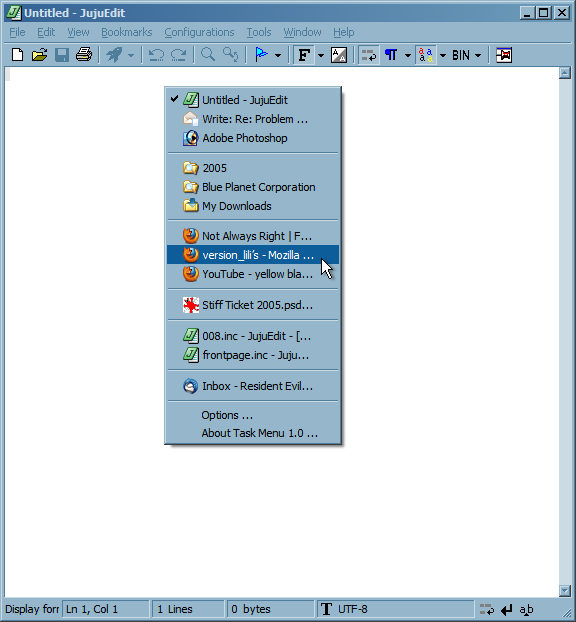
It would be very nice to be able to show a menu of open windows on demand, but this is not possible under Microsoft Windows as there is no recognition for more than five mouse buttons and therefore nothing left to assign it to. An example of this can be seen in the illustration below. With the illustration being sixteen years old at the time of writing, it’s no longer possible to recollect clearly how the menu was intended to be structured. The windows appear to be grouped by application, but JujuEdit windows appear both in the application’s own group and in the top assorted group. Note that the tick should be a bullet mark as the active window is a mutually-exclusive state.
Mouse bindings by system
The following brief notes help illustrate that there is not a single, standard definition of mouse button bindings or of modifier key bindings during mouse operation. Mouse button bindings will be set according to whatever makes the most sense.
Apple
The Apple Lisa team opted for a single mouse button, out of possibly the same misguided sense that users could not cope with anything greater that led to them abandon proportional scroll bars. With only one button to bind, double-click was selected as a way to instruct the computer to open an item (apparently Apple didn’t event double-click as a workaround for a single mouse button). The same decisions were carried over to the Macintosh. The convenience of double-click meant that it was adopted by other systems; even if the Lisa and Macintosh had offered additional mouse buttons it would have been a waste of a button to use it for simply opening items.
The same button could be kept held to “drag” items: to move them around the screen. This let users move windows and relocate items on disk to another folder or volume.
Keyboard modifiers were needed to supplement the mouse. Holding Command while opening an item would close the folder window. Holding Command while dragging a window would allow a window to be moved without raising it to the top. Command-click allowed multiple icons to be selected at once. Option-drag (if memory serves) copied a file within the same volume instead of moving it.
When it became clear to Apple that contextual menus were inevitable, Apple introduced them by way of Ctrl-click. The third-party utility TheMouse2B allowed anyone with access to a PS/2 mouse (e.g. the licensed Macintosh clones) to bind the right mouse button to Ctrl-click, which due to timing issues mostly worked.
RISC OS
RISC OS continued with the tradition of using three-button mice as found in other BBC Micro software (which would include the mouse in box as this was a command-line OS).
Double-click was carried over from the Mac, but the two additional buttons were extensively used, allowing a lot more tasks to be performed without the inconvenience of modifier keys. The left mouse button (called “Select”) worked as you would expect. The middle button was named “Menu” and opened a menu at the cursor location; application menus and contextual menus were combined into a single system that was accessed as you would access a contextual menu in Mac OS or Microsoft Windows. The right button was named “Adjust” and was typically the complement to Select (left button). Adjust-drag would move a window without raising it. Adjust-click on any of the scroll bar buttons would scroll in the reverse direction, allowing a change of scrolling direction without needing to move the cursor. Adjust-click would add or remove items from the selection in the Filer, akin to Command-click (Mac) or Ctrl-click (Windows).
PC
The IBM Personal Computer did not include a mouse, so there was originally no standard. Microsoft went with two buttons for their mice, and Logitech went with three, but Microsoft Windows only made use of the first one. Some applications introduced contextual menus with a right click, and Windows 95 made this practice official. Microsoft’s two-button mouse arrangement became standard, but the IntelliMouse introduced a scroll wheel that also functioned as a middle button. Two additional buttons (X1 and X2) that default to Back and Forward (in Windows Explorer and Internet Explorer) came along later, perhaps with the IntelliMouse Optical. Although there are many PC mice with more than five buttons, Microsoft declined to incorporate support for them into the OS, meaning that the additional buttons can only be recognised by custom software, and being gamer products, this software is best avoided like the plague.
Microsoft also adopted modifier keys for Windows Explorer (now File Explorer) but there has never been the same level of innovation in Windows as there was for the Macintosh and the Archimedes. Ctrl-drag copies an item, and Ctrl+Alt-drag creates a shortcut to it. Dragging an item to another volume defaults to copy; Shift-drag changes this to move. The drag must be started before the modifier key is pressed. One useful feature is that, upon holding a modifier key during drag, a tooltip appears against the item being dragged to show what effect the modifier key will have.
Dragging an item with the right mouse button causes a menu to appear when the mouse button is released, which allows the operation to be performed single-handedly. This menu can be customised (at least in Windows 10) by third-party software: 7-Zip includes a submenu from which the dragged items can be compressed into an archive at the target location, something that is not possible with any modifier key combination.
Mouse button bindings in Windows are fairly erratic. Clicking the scroll wheel is designed to into a special variable-speed automatic scroll mode (that is impossible to explain and tends to be more of a nuisance than anything) but Microsoft have steadfastly refused to implement this for File Explorer, and it remains absent from lots of other software, adding to the general inconsistency of Windows. Panning around a document can be a straight-up middle mouse drag (Inkscape), right-drag (IrfanView) or space-drag (Photoshop). Rotating the wheel can represent either scroll or zoom depending on the application and website. Inkscape uses it for vertical scroll, with shift-scroll for horizontal scrolling and Ctrl-scroll for zooming. Middle-click in Inkscape zooms in; holding Control has no effect but Shift-click zooms out.
X-Window System
Right-click was typically bound to paste, which was copied by PuTTY and the Command Prompt under Microsoft Windows, adding further to the general chaos and unpredictability of the Windows environment.
No other details at present.