Wayfarer
Contents
Overview
Wayfarer was a freeware alternative shell for Microsoft Windows 3.1, designed by Iain Clifford Heath to replace both Program Manager and (to a lesser extent) File Manager. Taking inspiration from Windows 95, Wayfarer version 2.2 (bearing a copyright date of 1995) introduced a taskbar feature known as the Yardstick, with the unusual feature of variable-width buttons.
Even by version 3, Microsoft Windows did not have file type, window or process icons. File Manager only had around four item icons: directory (later called a folder), program, associated file and unrecognised file. Program Manager likewise was fairly clumsy.
Wayfarer allowed the user to build a fully-custom arrangement for launching programs and opening files. The user was able to associate custom icons with file types for ease of recognition.
As Wayfarer allowed extensive customisation of its interface, the screenshots below are purely examples and not indicative of how other people configured it. Being long obsolete, the details below are not as detailed or comprensive as they might be were this page written at the time that Wayfarer was still in use; bringing Windows 3.11 up under DOSbox never worked and thus Wayfarer is now consigned to a distant memory of an age when there was actual value in replacing the Windows shell with various third-party offerings. All the screenshots were taken at least twenty years ago and as such, this page just offers a summary of what Wayfarer could do.
Wayfarer was superbly documented—very rare in computing—but Microsoft no longer recognise the help file format used. The text can still be read using Notepad, however, which has answered a few questions that came up.
Workspaces
The screenshot below shows an example workspace:
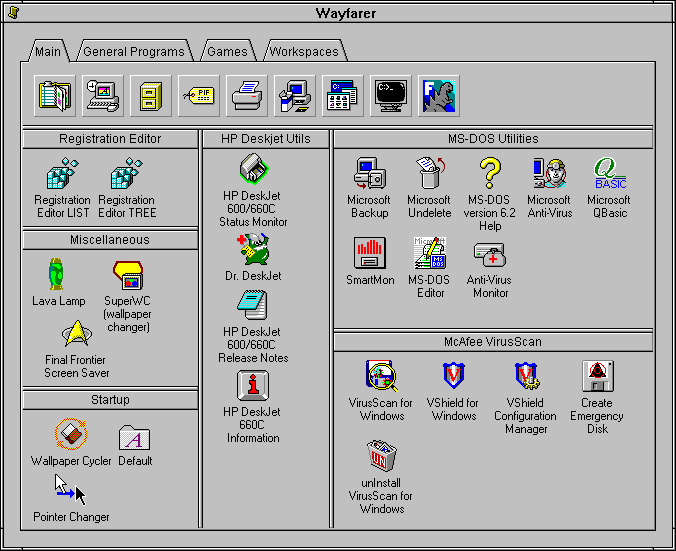
Wayfarer windows are drawn in a different style to that of the OS, in solid grey with grey title bars. The window border still has the eight notches to indicate the resize corners. A lighter shade of grey would have helped, but Wayfarer was designed around the primitive 16-colour standard Windows colour palette.
The example above demonstrates some of the basic UI options available. Wayfarer windows are formed of one or more panels, of the following types:
- General panels
- These are like Program Manager groups in that they contain icons representing programs or single documents. The icons can be positioned freely, aligned to a grid or automatically arranged.
- Browser panels
- These panels represent the contents of a directory on disk. They can be used to browse and open files, but seemingly not to manage files, for which File Manager is still required.
- Tab panels
- A set of panels that can be selected by tabs; each tab can contain a panel of any type.
Panels can be divided up into sub-panels that can each be any of the three panel types. Below one can see tab panels that are divided into more tab panels and divided again into general panels:
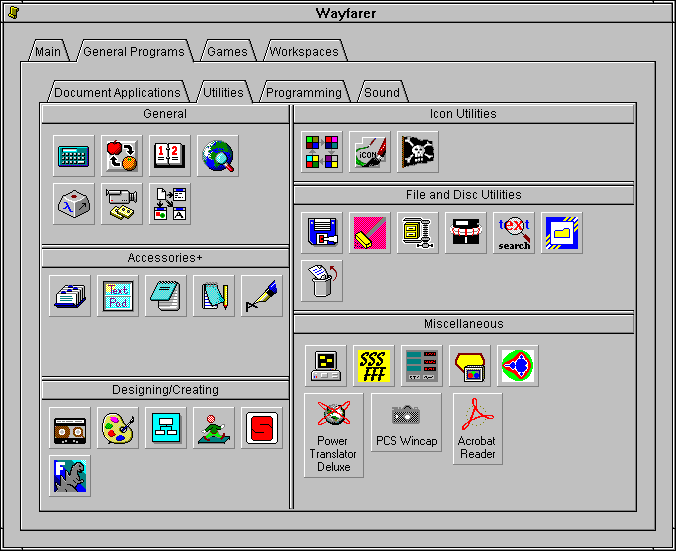
As noted, general panels can laid out manually:
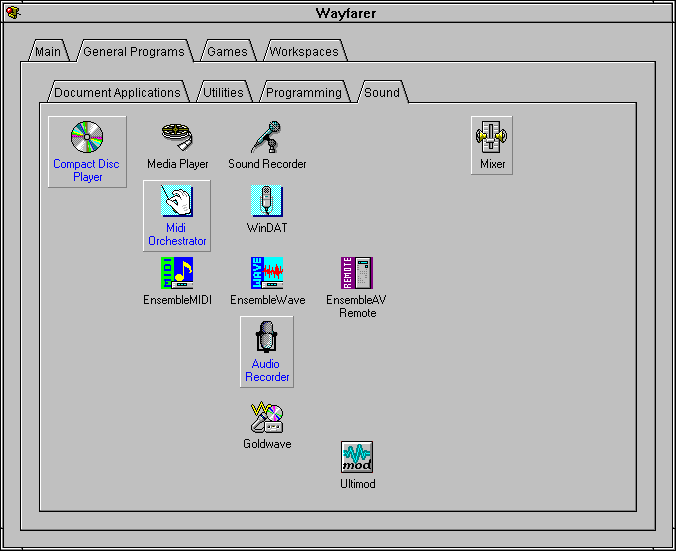
The example below shows a simple directory listing, a browser panel inside nested tab panels:
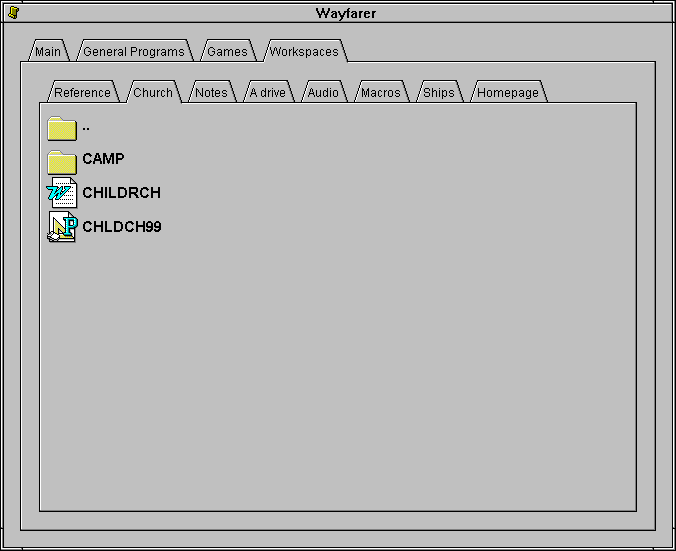
Where exactly the Word and Publisher document icons came from now is difficult to say; they appear to be taken from the programs themselves instead from from Wayfarer’s built-ins, but there were no file type icons back then.
A single panel can be divided up into multiple browser panels:
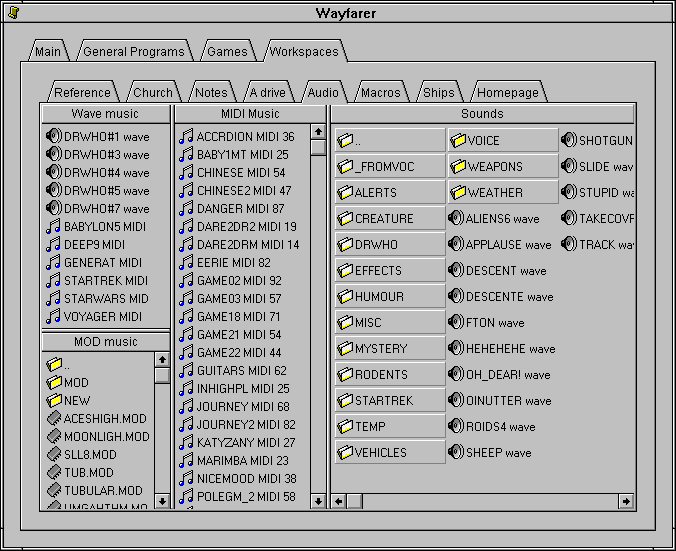
Note how the Sounds panel uses a different listing style from the other panels, with subdirectories drawn as buttons and the files shown as columns instead of a single vertical list. Wayfarer was very customisable.
Import
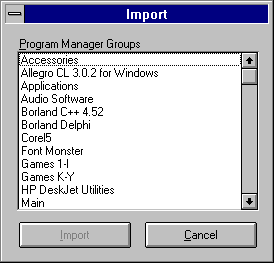
Wayfarer could import Program Manager groups as a starting point, to avoid needing to build the initial configuration from scratch:
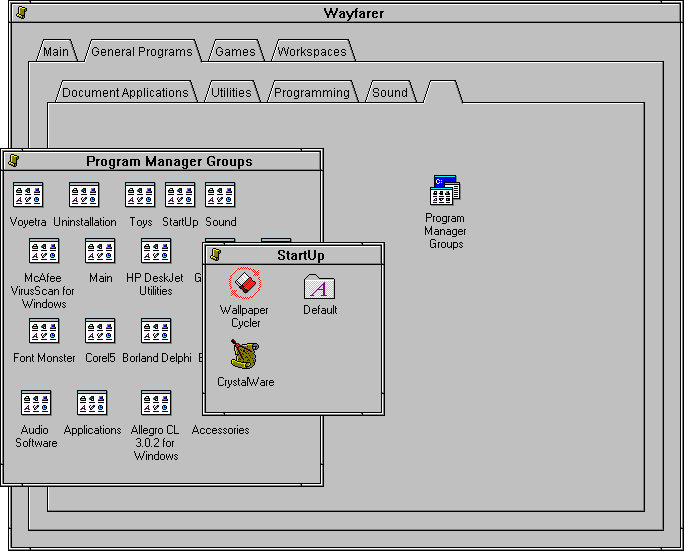
A “Program Manager Groups” icon is created that opens a new window containing the selected groups, and each group in turn opens in its own window:
Configuration
Customising a browser panel
To customise a browser panel—a panel that shows the contents of a directory on disk—right-click in a blank space to call up the context menu, and choose Configure:
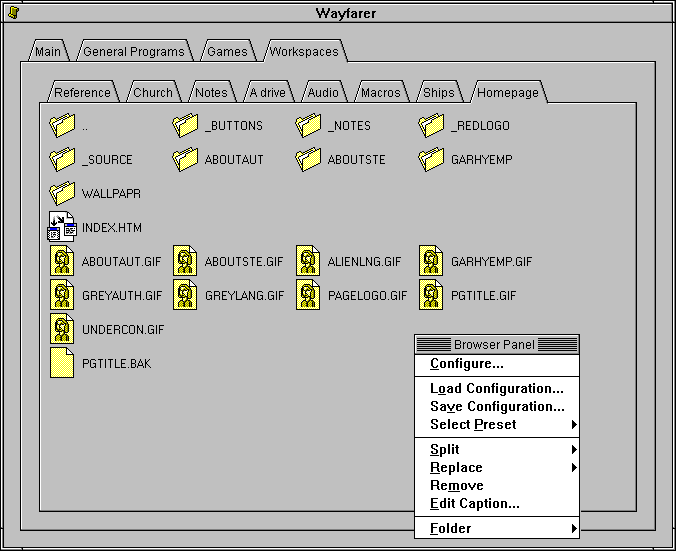
This brings up a dialog box where you can choose the home directory, the file groups and other settings:
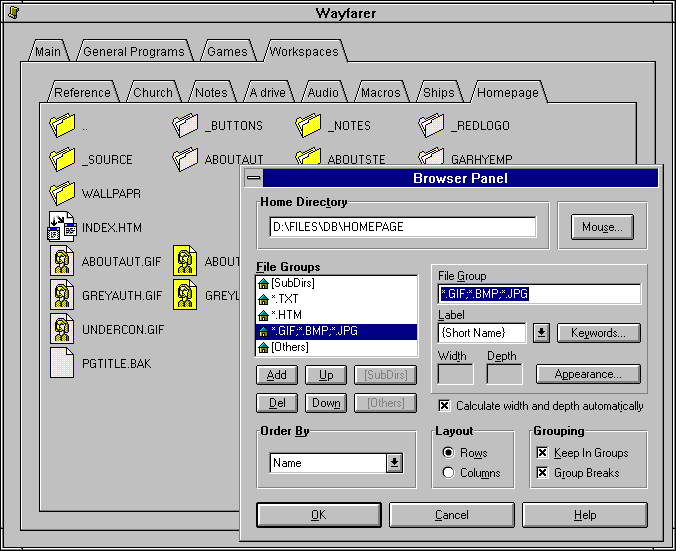
File groups allow multiple filename extensions (or even filename wildcards) to map to the same display settings; files can be listed according to group order. The label of each icon can use one or more placeholders to provide detail such as:
- {F}
- Full path
- {S}
- Filename
- {N}
- “Node”: filename without extension
- {E}
- Filename extension
- {P}
- Enclosing directory path
- {B}
- Size in bytes
- {K}
- Size in kilobytes
- {G}
- Size in megabytes (not {M})
- {H}
- Hour (last modified timestamp)
- {I}
- Minute (last modified timestamp)
- {D}
- Day (last modified timestamp)
- {M}
- Month (not size in megabytes)
- {Y}
- Year (last modified timestamp)
- {T}
- Tab
- {L}
- New line
Only the first letter in between the braces is read, so “{Short Name}” is simply read as “{S}”, as is—per the documentation—“{Silly}”.
Special file groups “[SubDirs]” and “[Others]” can be added to the list to display subdirectories and files of types not directly specified.
Other options for the panel include arranging the files according to file group, starting each file group on a new line, and row versus column layout. The documentation indicates that files can be sorted by name, filename extension, date or size, where date and size (but not name and filename) sort can be either ascending or descending. The tab width setting controls the tab stop size used when multiple label components are separated by tab symbols (using “{T}”).
The appearance of the items within each file group can be configured separately:
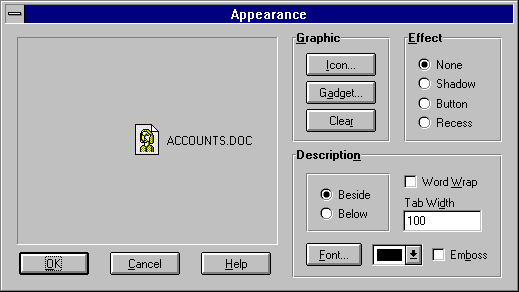
Items can have their description placed to the side or below, and can have a raised (“button”) or recessed border. This for example is how subdirectories were given the button effect in one of the examples above.
Given the lack of file type icons in 16-bit Windows, Wayfarer provided banks of stock icons as well as the ability to use existing icons:
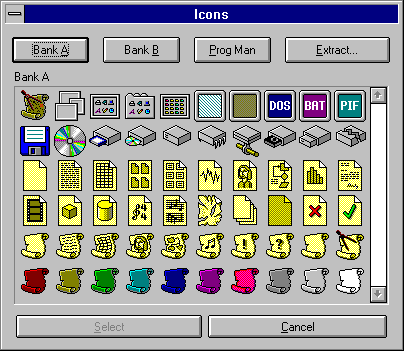
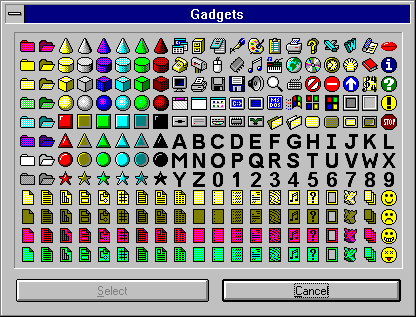
For 16×16 icon listings, “gadgets” (the name given by Wayfarer to 16×16 icons) were offered instead; there is no provision to import 16×16 icons so one had to make do with the built-in ones:
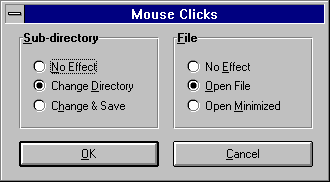
It is also possible to choose the effect of mouse clicks on items of each file group:
Creation of new panels
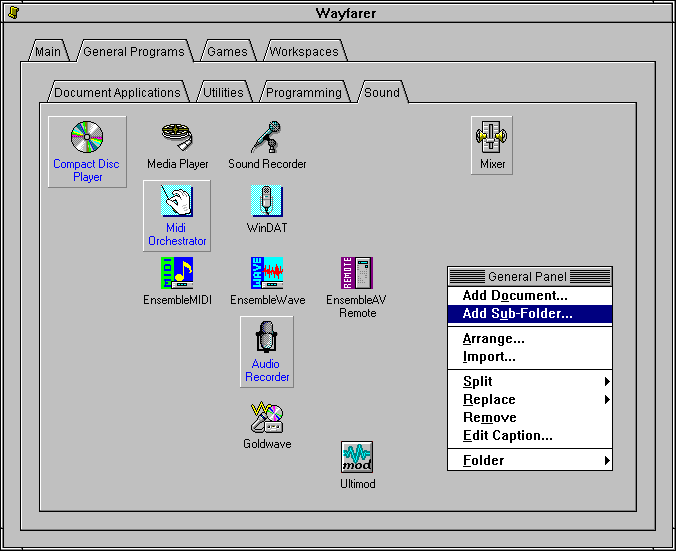
New windows can be created at liberty. Start by right-clicking an empty space in a general panel and create a new subfolder:
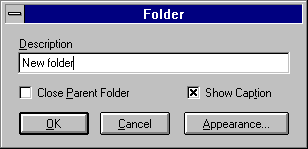
Name the new folder (or not):
New folders are shown in a separate window:
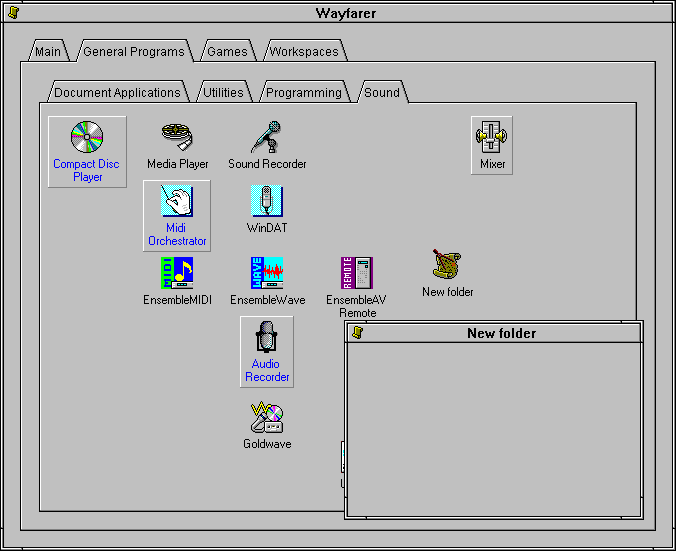
The “Close Parent Folder” option does as the name suggests, but unlike the Mac or Archimedes, is a permanent setting instead of a choice that can be made each time the folder is opened.
This new window can then be customised to one’s desire. For example, we start out by dividing it: we can place tab panels and general panel divisions at any level.
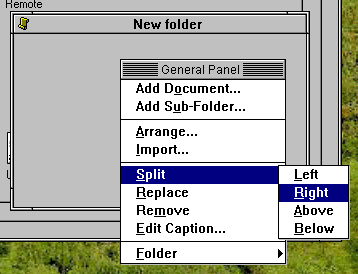
All panels begin life as general panels; here, we are changing it to a browser panel that represents a directory on disk:
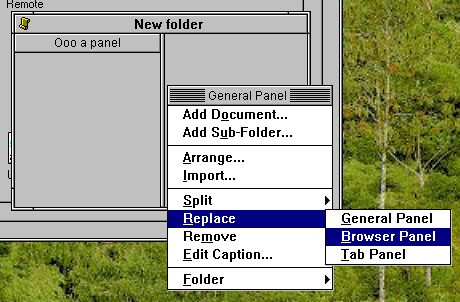
Browser panels default to inactive; before they can be used, they must be configured:
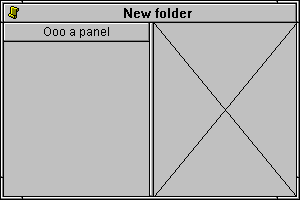
For some reason the panel on the left was assigned a caption, but the panel on the right was not! Panel captions are optional.
There are various curious presets that can be chosen:
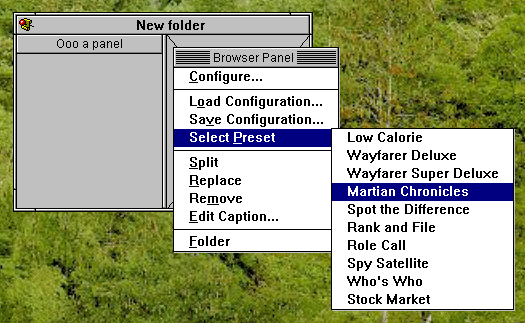
The browser panel is now active:
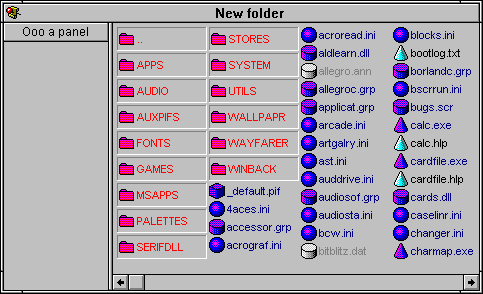
Note the red pin in the window’s top-left icon: this holds the window open when it has been used. Normally, choosing an item closes the window, but if you pin a window it will remain open.
Skipping ahead slightly (the screenshots for the intermediate steps were missing), the left-hand panel has now been vertically split, and the bottom-left panel converted to a tab panel. New tabs can be added and inserted:
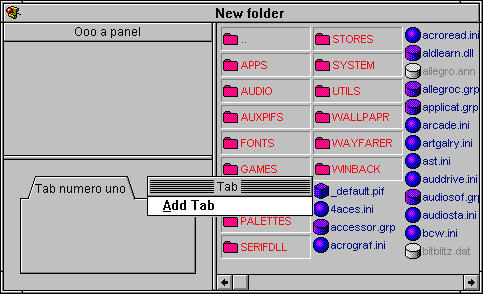
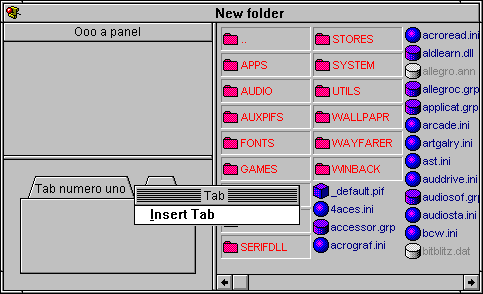
General panels support different grid spacings along with automatic arrangement:
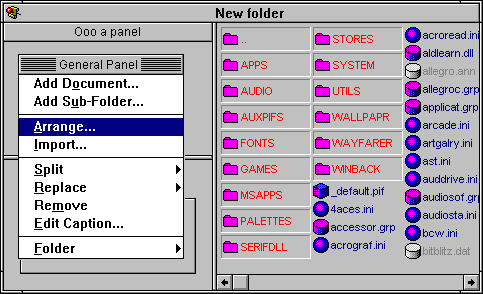
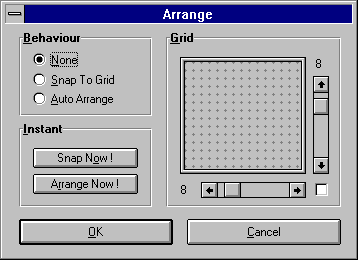
Exactly what “Auto Arrange” does is unclear considering that there is no defined sort order. It was documented as follows:
Icons are automatically arranged across the panel by Wayfarer. Manual positioning is not possible, and the only effect of dragging icons with the mouse is to control their relative ordering within the arrangement pattern.
And thus ends all the screenshots from two decades ago covering panel management.
Yardstick
Wayfarer includes a taskbar called the “Yardstick”. From left to right it has a button to open Wayfarer, buttons representing open windows, and (on the right-hand side) buttons for minimise all windows, maximise all windows and tile all windows. Taskbar buttons are variable width, being as wide as necesssary to contain their captions.
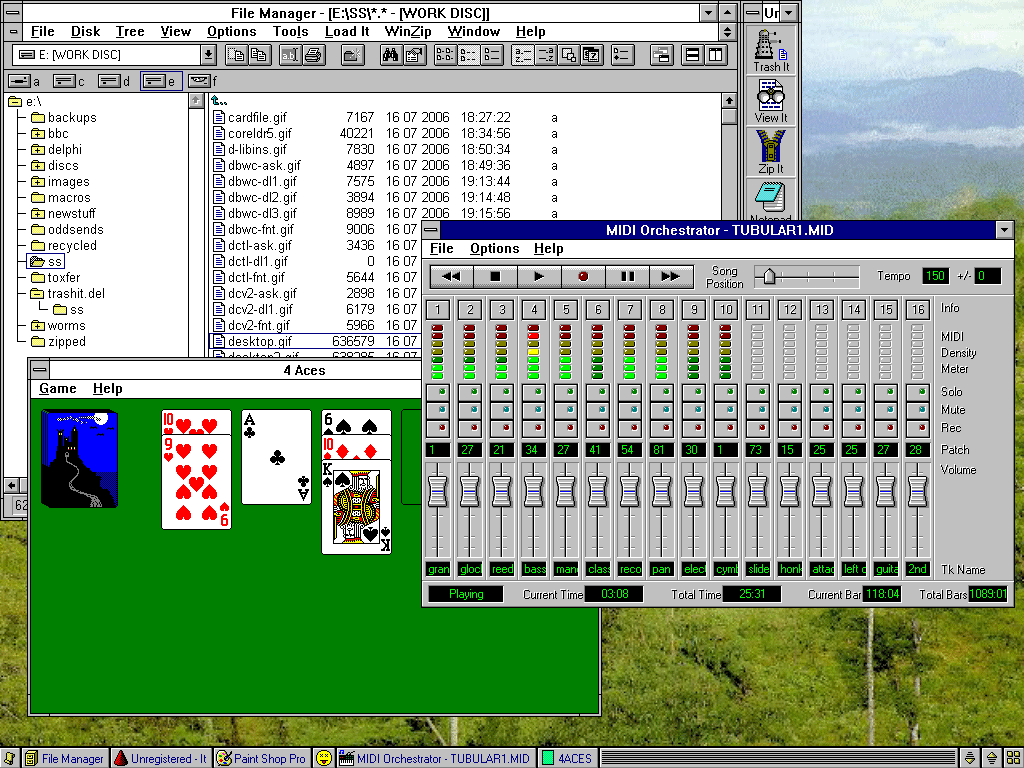
Use of the Yardstick was optional:
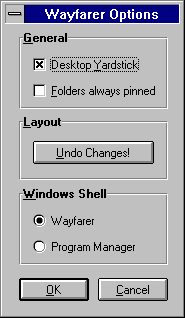
Window icons didn’t exist in Windows 3, so although Wayfarer can obtain the caption of a window, it cannot obtain an icon. Program icons existed, but file type icons did not, so there were no 16×16 icons to work with either; these behaviours were introduced with Windows 95 to support the native taskbar and the new Windows Explorer with proper file type definitions.
Once a program is opened, the user can override the name displayed as well as choose which icon to use. For example, the window caption above for File Manger reads “File Manager - [E:\SS\*.* - [WORK DISK]]”, which in the example below has been reduced to simply “File Manager” for simplicity and to conserve taskbar space. There is in fact no need to have a caption at all, if a simple icon will suffice (as seen by the silly face icon in the example above, not that it’s now apparent over 20 years later what exactly that icon denoted.
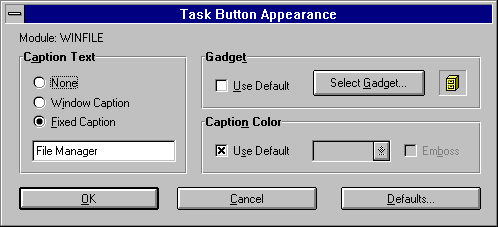
Since 16×16 file and program icons were not a thing on the PC (unlike on the Macintosh), Wayfarer only allows built-in “gadgets” as a choice for taskbar buttons:
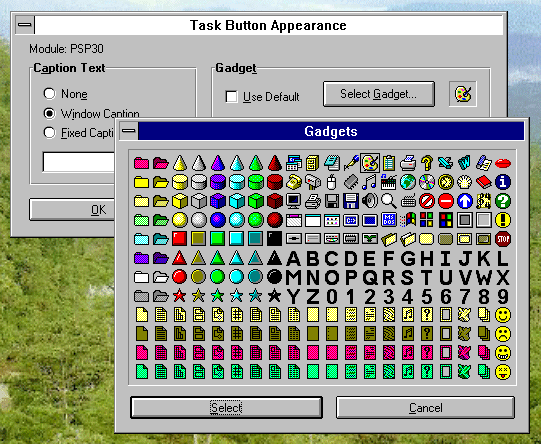
Stock icons for various built-in and well-known application (such as File Manager, Paintbrush and Microsoft Word) are included as standard. In most cases, one must make do with an icon that is visually mnemonic for the application represented, such as a green rectangle representing the solitaire card game 4 Aces. (Why its caption reads “4ACES” instead of “4 Aces” remains a mystery.)
Wayfarer menu, presumably opened by right-clicking the Wayfarer button:
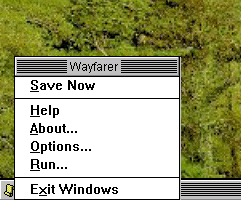
Note the option to “Exit Windows”, because Windows in those days functioned like an MS-DOS application and could be exited to return to the DOS prompt.